
AnyEXIF Ultimate Guide
View, Edit, and Manage Photo Metadata on Mac Easily
Digital photography isn't just about capturing stunning images—it's also about the metadata that comes with each photo. This data includes valuable information such as the camera model, shooting settings, location, and even details about the photographer. Understanding and managing this metadata is crucial to maintaining a well-organized, accurate, and secure photo collection.
AnyEXIF is a powerful and professional EXIF editor, specifically designed for Mac users. With it, you can effortlessly view, edit, and remove metadata from your photos. Recently, our team rolled out a major update to AnyEXIF after extensive development, testing, and optimization. The software has been significantly enhanced to deliver a smoother, more efficient, and user-friendly experience for editing photo metadata.
In this tutorial, we'll provide a detailed overview of AnyEXIF's features and offer a step-by-step guide on how to use it to edit and manage your photo metadata. Our goal is to help you get started quickly and confidently—without any confusion.
A Brief Overview of AnyEXIF
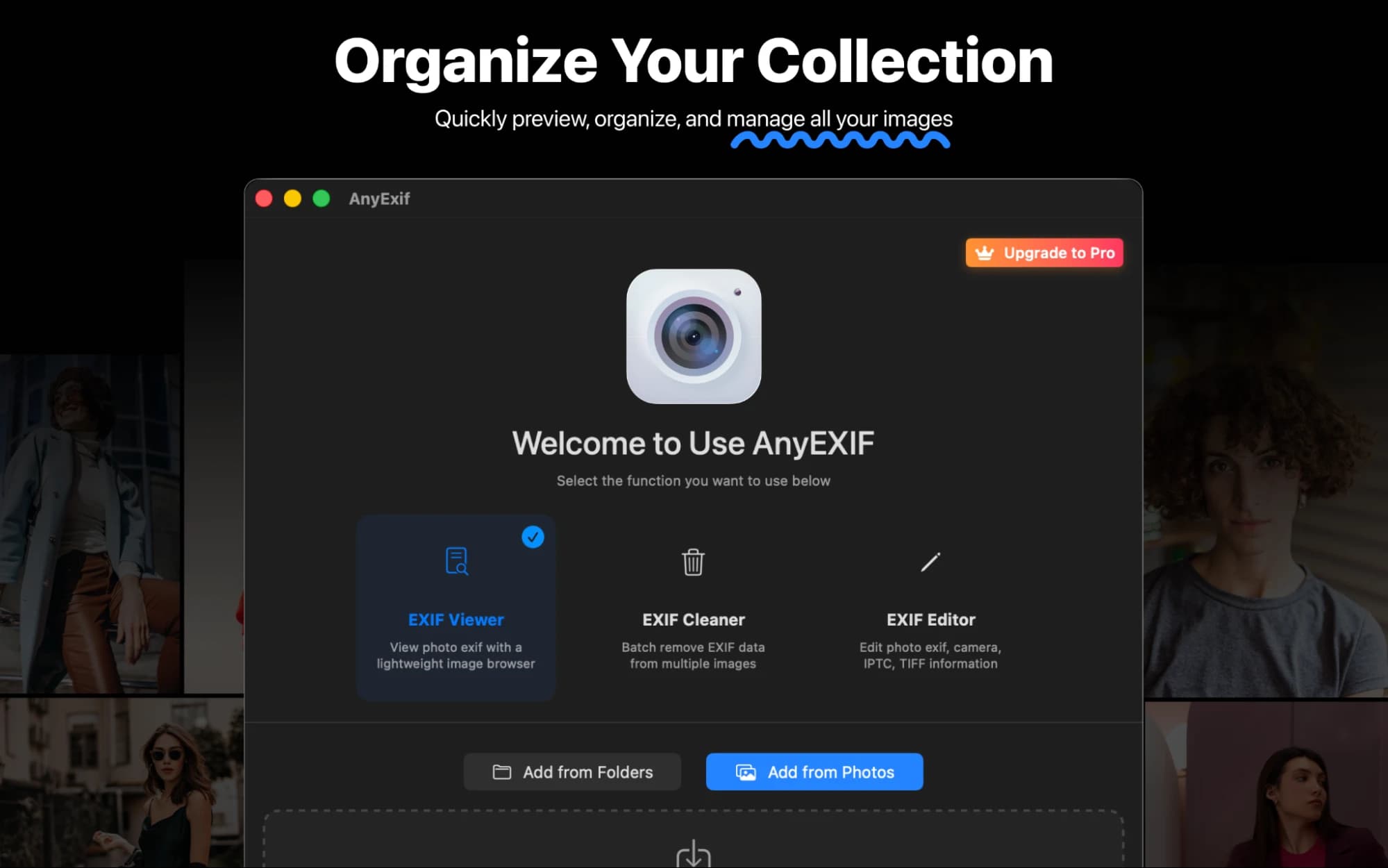
AnyEXIF is a professional-grade metadata editor designed specifically for macOS. Whether you're a photographer protecting your privacy, a digital nomad geotagging travel photos, or a power user analyzing camera data, AnyEXIF provides the tools you need in a beautiful, native interface.
Whether you're working with a single photo or a batch of images, AnyEXIF supports seamless editing for both. It's perfect for removing sensitive information, inspecting metadata details, or organizing your photo collection. With AnyEXIF, you have all the tools you need to handle your photo metadata with ease and precision.
Key Takeaways
File Formats That AnyEXIF Supports
AnyEXIF supports multiple image formats, including but not limited to the following formats:
What Metadata Does AnyEXIF Work With
GENERAL
Description, TIFF DateTime, File Created Date, File Modified Date, Keywords, Artist, Copyright, Usage Terms
LENS
Lens Make, Lens Model, Lens Serial Number, Lens Spec, Focal Length, Max Aperture Value
CAMERA
Camera Make, Camera Model, Camera Serial Number, Shutter Count, Firmware Version
FLASH
Flash Pix Version, Flash Energy
EXIF
Exposure Time, F-Number, ISO, Shutter Speed, Aperture, Exposure Bias, Metering Mode, White Balance
TIFF
TIFF Compression, Photometric Interpretation, Transfer Function, Photo Orientation, X Resolution, Y Resolution, Resolution Unit
GPS
GPS Latitude, GPS Latitude Ref, GPS Longitude, GPS Longitude Ref, GPS Altitude, GPS Altitude Ref
IPTC
Creator, Credit, Source, Caption, Headline, City, Province/State, Country, Category
AnyEXIF Basic Toolkit Introduction
Photo Inserting Options
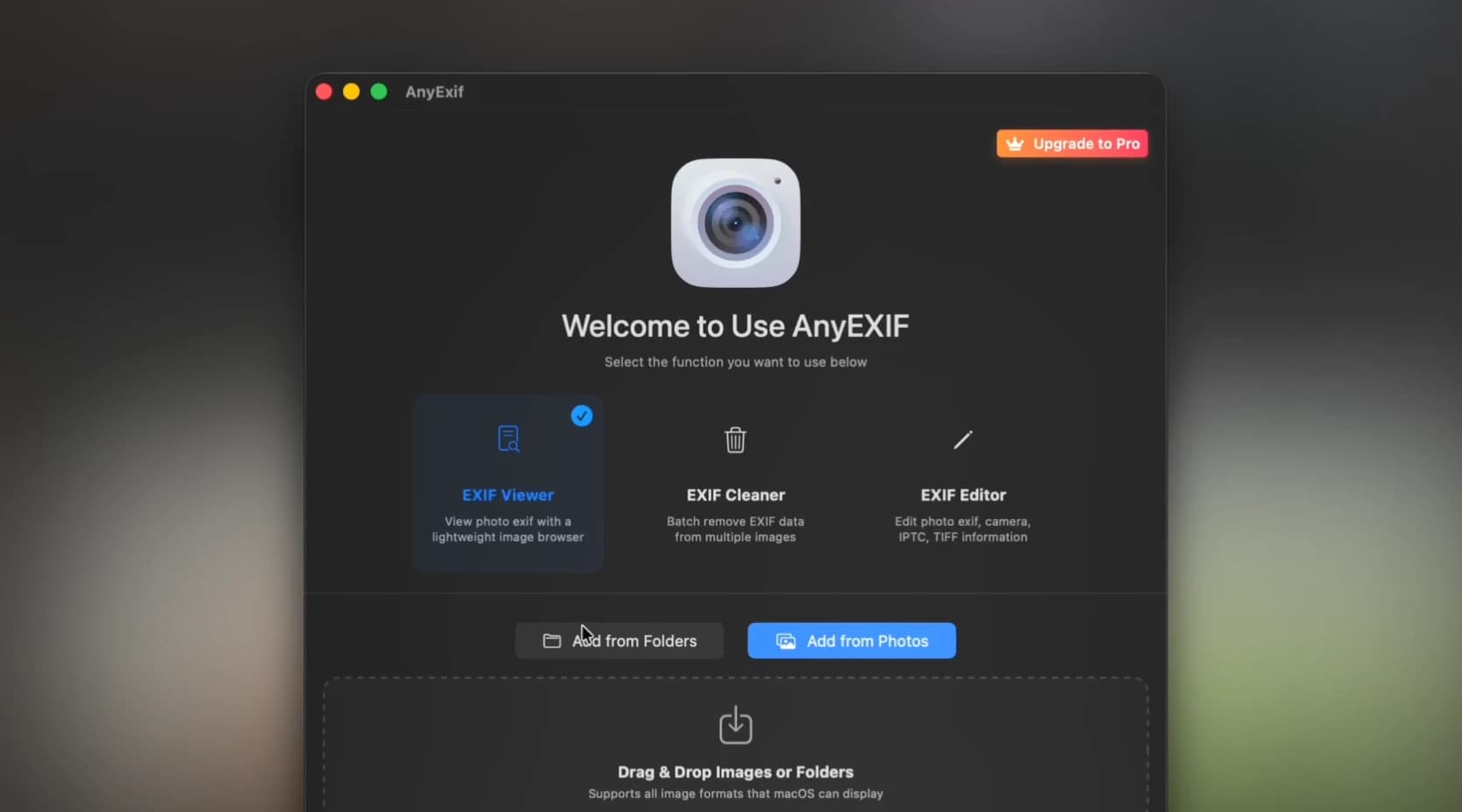
Workspace Toolkit Introduction
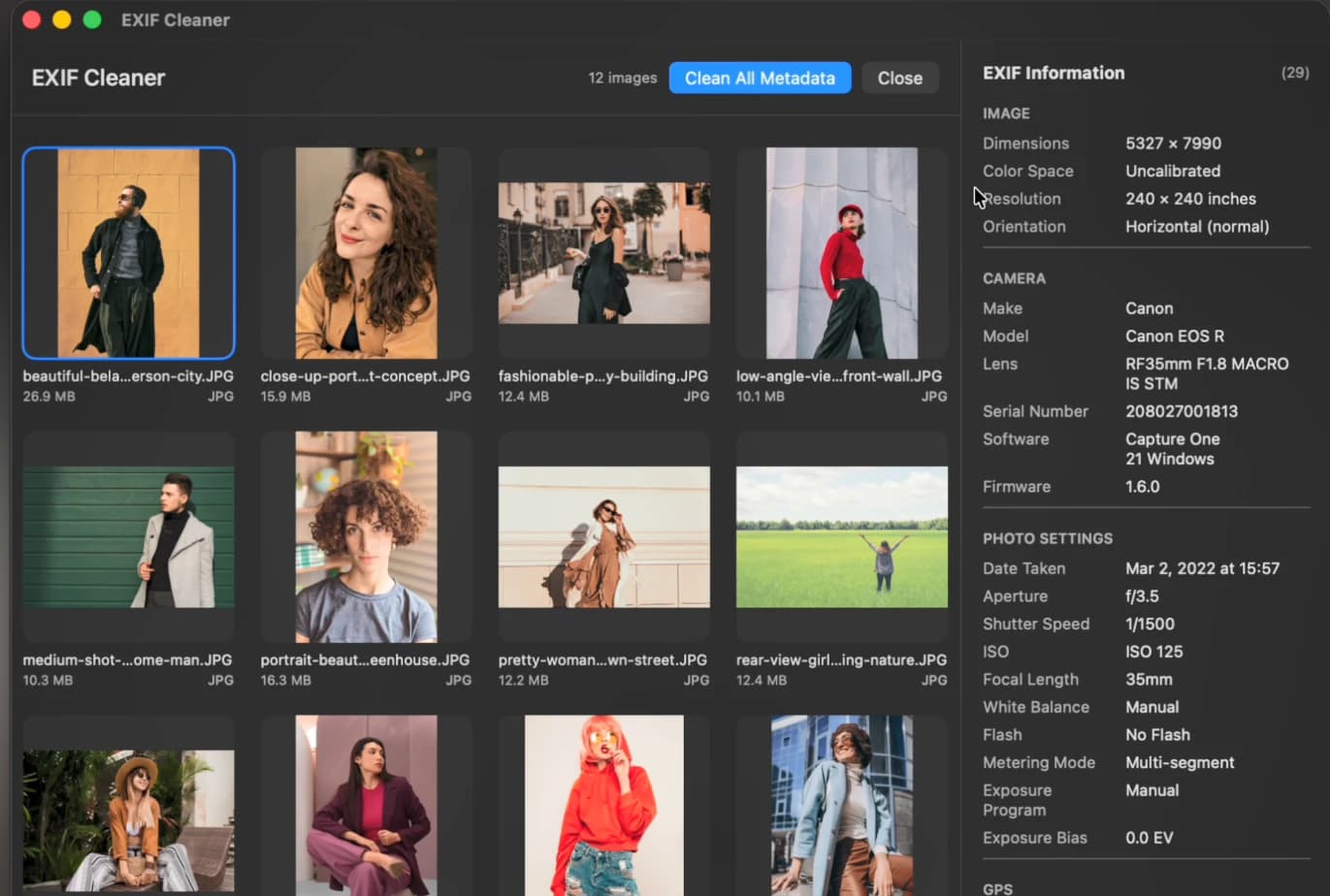
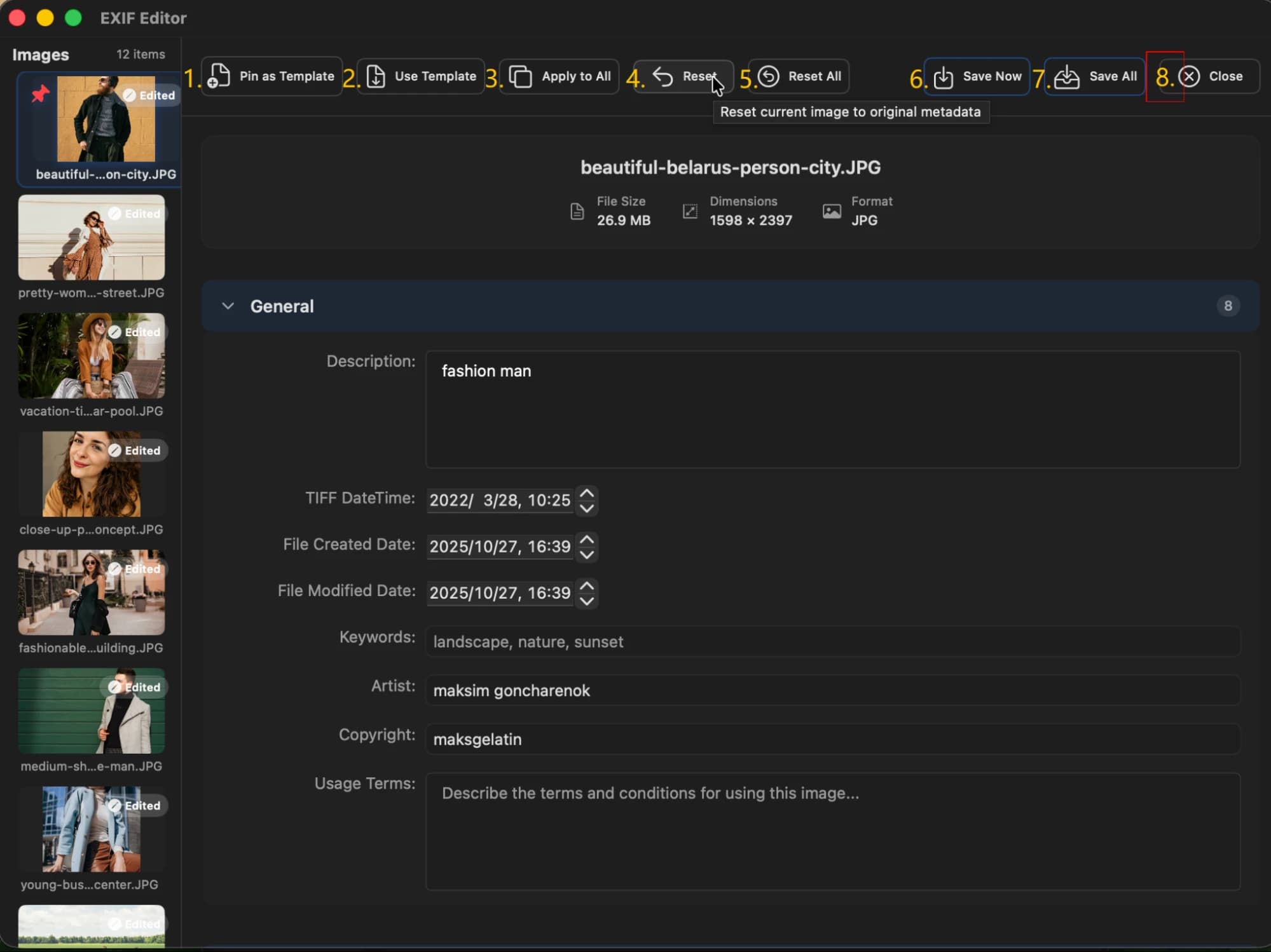
For your viewing convenience, we've labeled each feature with a number in the screenshots.
EXIF Viewer
- Close – Close EXIF Viewer
- EXIF Information – Display detailed image information, starting with four aspects: Image, Camera, Photo Settings, GPS, and IPTC. The number in parentheses indicates the total amount of information contained within the image.
EXIF Cleaner
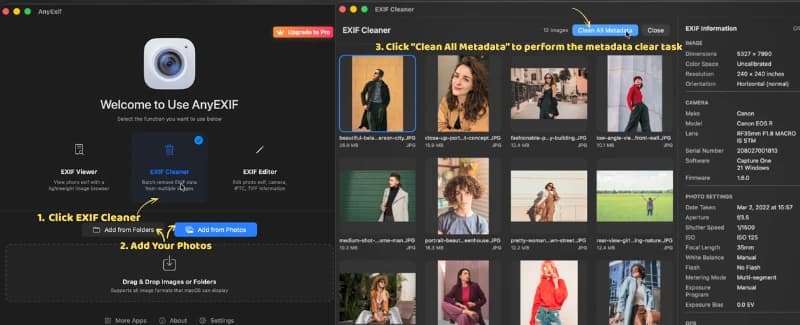
Clean All Metadata – Select the file whose metadata you wish to clear. Once selected, the process to clear the image metadata will begin automatically.
EXIF Editor
How to Add Photos to AnyEXIF
Add From Folder
If you want to process multiple photos located in a specific folder, click "Add From Folder" to insert all images into AnyEXIF at once.
Add From Photos
Once you launch the software on your Mac. Click "Add From Photos". Then you can add a single photo or more photos from the Photos Library.
How to View EXIF Data of Your Photos
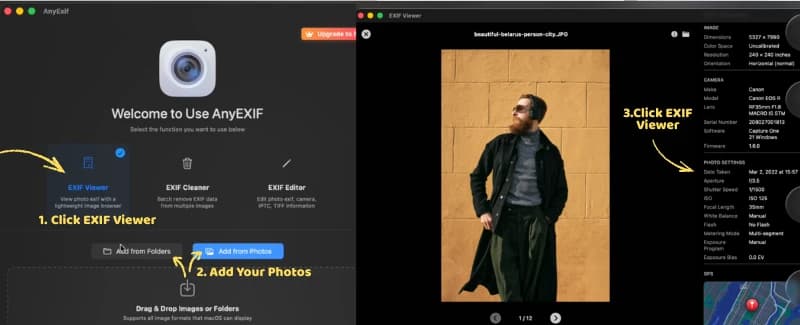
Select EXIF Viewer, add photos, and view metadata in the right panel.
After adding photos, enter the "EXIF View" function. The metadata information (such as basic details and camera parameters) will be displayed in the right panel.
Scroll down the right panel to view all major EXIF data for the selected image, including basic information, camera parameters, GPS data, TIFF format information, EXIF information, and IPTC information.
How to Edit EXIF Data of Your Photos
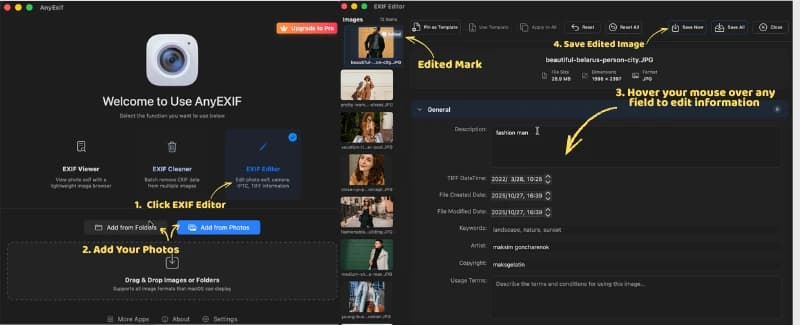
To edit EXIF data of your photos, upload your image to AnyEXIF and view its detailed metadata. You can modify the General Information, such as artist, image description, copyright, software, and creation date, or adjust the Camera Information, including lens, flash, and exposure settings. If your photo contains GPS data, you can remove or edit it to protect your privacy. For professional use, you can also edit the IPTC tags to include photographer details, copyright information, and image descriptions. AnyEXIF makes it simple to view, modify, or remove all these details to manage better and protect your digital photos.
Steps:
- Select EXIF Editor and click "Add from Photos" to select the photos you want to edit.
- Select a specific image to view its details. Hover over any field to edit information like description, creation date, artist, or copyright.
- After making changes, 'Edited' will appear in the top-right corner of the image. Click "Save Now" to apply and save your changes.
Batch Edit EXIF Data
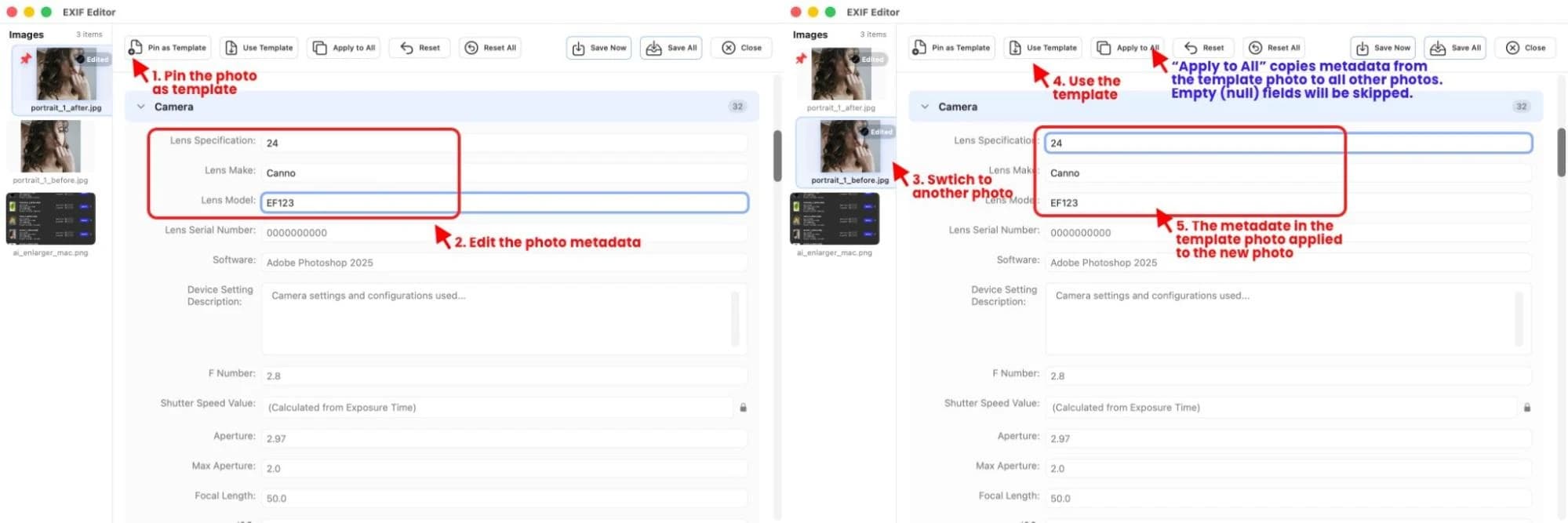
In the above content, we explained in detail how to modify EXIF information for a single photo. The advantage of single photo editing is the ability to write unique EXIF data for each image. However, if there are many photos to process, that solution is no longer applicable. Luckily, we support batch processing mode. It allows you to perform metadata editing on multiple images at once, saving you a lot of time.
Steps:
- Click "Pin as Template" and edit the information for one photo.
- Switch the other photo and click "Use Template" to apply the modified information from the template image.
- If multiple photos require modified information from the template photo, click "Apply to All" and then click "Apply" in the pop-up window to process them in batch. After processing is complete, click 'OK'.
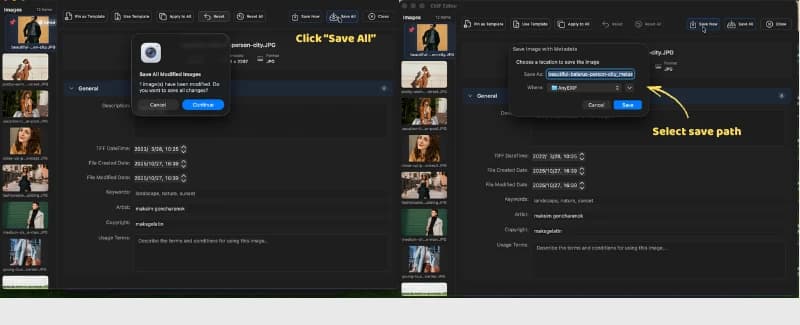
- Save the batch-edited images locally by clicking "Save All".
- The system will prompt you to select a folder to store the photos with new EXIF information. You can export them to the original folder or a custom path.
How to Remove Photo Metadata
Steps:
- Select "EXIF Cleaner," then click "Add from Folder" or "Add from Photo" to choose photos and preview their metadata.
- Click "Clean All Metadata" to perform the metadata clear task.
- Then select the original path to open and preview the erased image information.
⚠️ Warning: Once the metadata has been erased, it cannot be recovered. We recommend that you make a backup in advance.
Software Installation Requirement
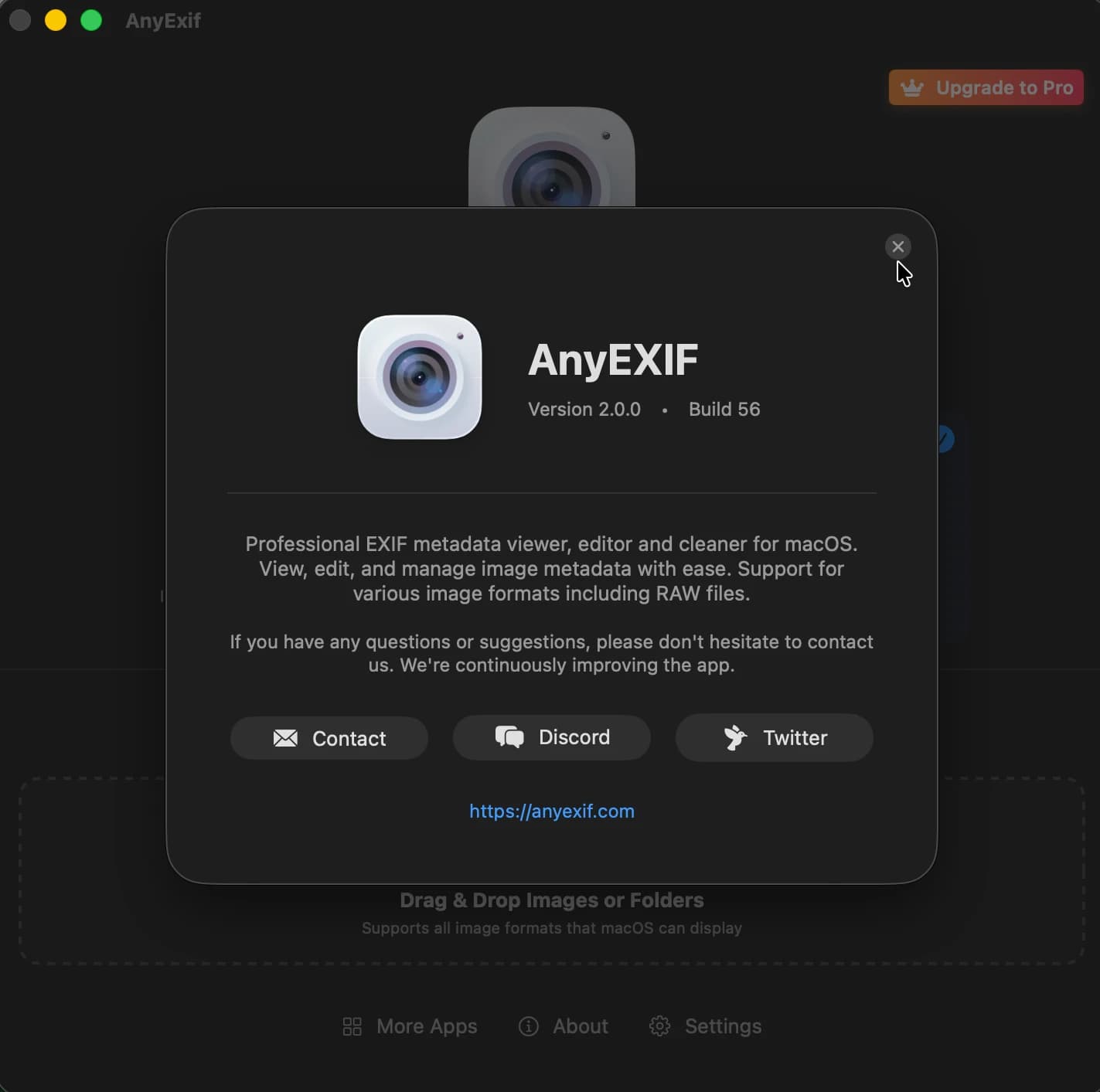
AnyEXIF is currently available exclusively for macOS. To use this software, you will need a Mac computer running macOS 13.5 or later. Please note that the interface language could be English / Arabic / German / Japanese / Korean / Simplified Chinese / Traditional Chinese.
Free Version vs Pro Version
Free Version
When using AnyEXIF for cleaning and viewing, it is 100% free. You can modify the metadata of up to 5 images for free at once. The editing tools, workflow, and editable metadata types are identical to those in the Pro version. However, you can only process one image per session. Once you've used your 10 free images, you'll need to upgrade to a Pro plan to continue using AnyEXIF.
Pro Version
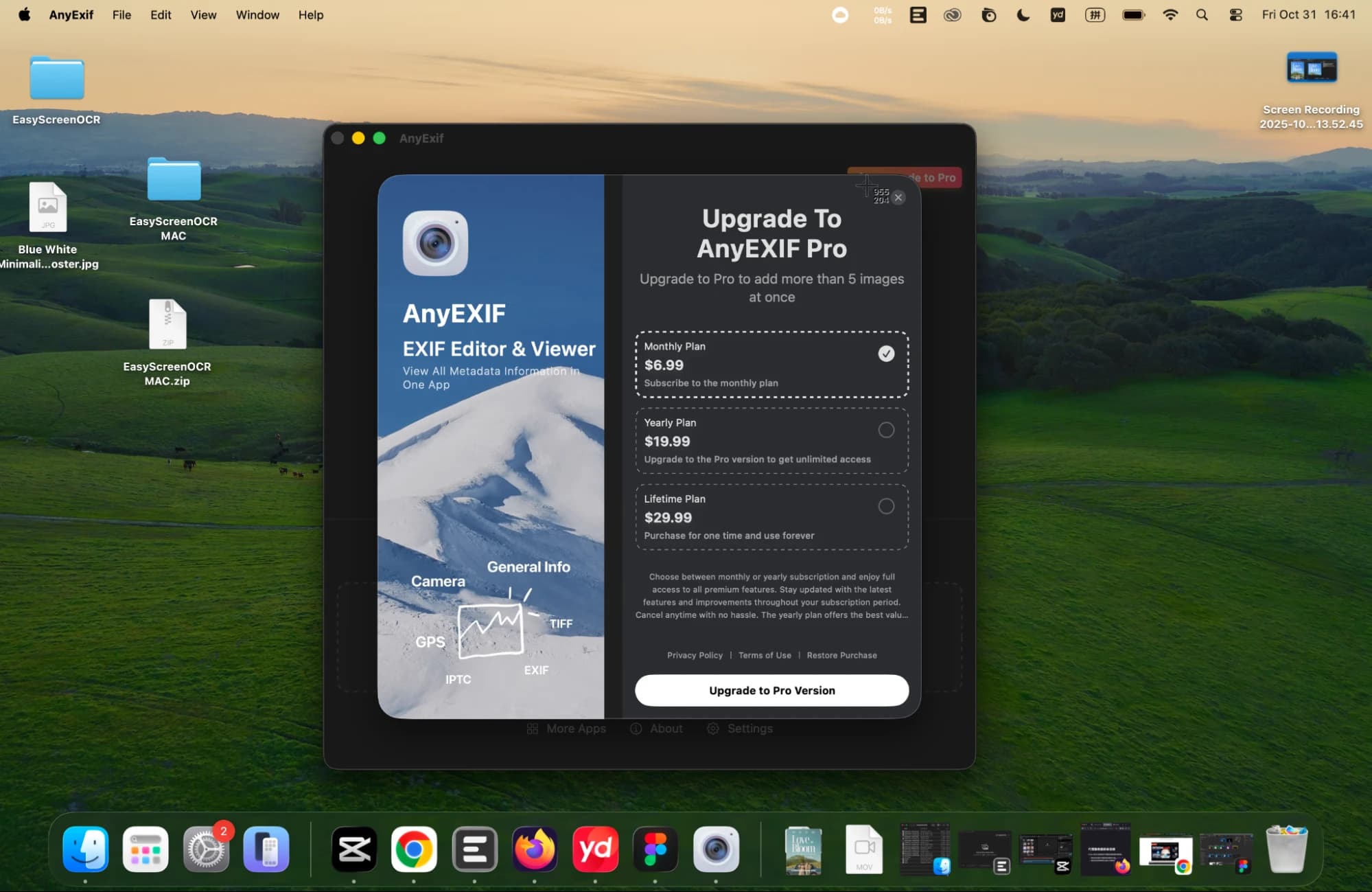
Unlock the full potential of photo metadata editing with AnyEXIF Pro. Choose the Plan that best fits your needs:
- Monthly Plan: $6.99/month
- Annual Plan: $19.99/year
- Lifetime Plan: $29.99 (one-time payment)
As a Pro user, you'll gain access to powerful batch processing, enabling you to edit the metadata of hundreds of photos simultaneously — a major boost in productivity!
Additionally, all your edited photos can be automatically saved to a specified folder, making file organization effortless and efficient.
Who Is AnyEXIF Best For
Photo Enthusiasts
Ideal for those who want a flawless photo library, ensuring every image has accurate metadata and precise location information.
Professional Photographers
deal for professionals who need to edit their photos on the go using an iPhone or iPad before submitting them to agencies.
Privacy-Conscious Users
Great for individuals who value their privacy and want to prevent tracking when sharing photos with strangers or using unfamiliar apps.
Analog Photographers
Excellent for those who shoot with film cameras and want to add detailed metadata to their digital scans.
Know More About EXIF Data and AnyEXIF
What is Photo Metadata?
Photo metadata is information stored within the image file that includes details about how and when the photo was taken. This data typically consists of the camera make and model, shutter speed, aperture, Artist, ISO, date and time of photo capture, GPS location, as well as some other technical settings.
What's New in the Latest Version?
The latest update introduces a smoother user interface, faster batch processing for multiple photos, and enhanced metadata editing performance. You can now preview, edit, and export EXIF data with greater speed and accuracy — all while maintaining 100% offline privacy.
Can I Edit Metadata for Multiple Photos?
Yes! The new version of AnyEXIF supports batch editing of metadata. You can select multiple photos and apply uniform changes such as copyright info, creator name, or GPS data — saving you significant time when managing large collections.
Is My Data Safe?
AnyEXIF is much safer than an online EXIF editor. AnyEXIF operates completely offline, meaning your photos never leave your local device. No uploads, no cloud storage, and no external access. This ensures maximum privacy and full control over your images.
Can I Recover Deleted Metadata?
Unfortunately, once photo metadata (such as EXIF, GPS, or IPTC information) is deleted, it cannot be recovered. The only way to retain this data is to create a backup of your original image before making any edits or removals. Always ensure you keep a copy of the unmodified photo to prevent permanent data loss.
Conclusion
In this post, we've taken a deep dive into AnyEXIF, providing you with a comprehensive guide to using this EXIF editor on Mac. With a simple interface, robust editing features, and batch EXIF editing mode, AnyEXIF will be a powerful tool to help you view, edit, and manage metadata of your photos easily and effectively.
Go to download AnyEXIF from the Mac store and give it a try. Feel free to reach out to us if you need any help or if you have better ideas for our growth!
If you have any questions, please feel free to send an email to [email protected]